Thursday, February 5, 2026
Virtual Intercom Releases VCom v2: Smarter Dental Office Communication

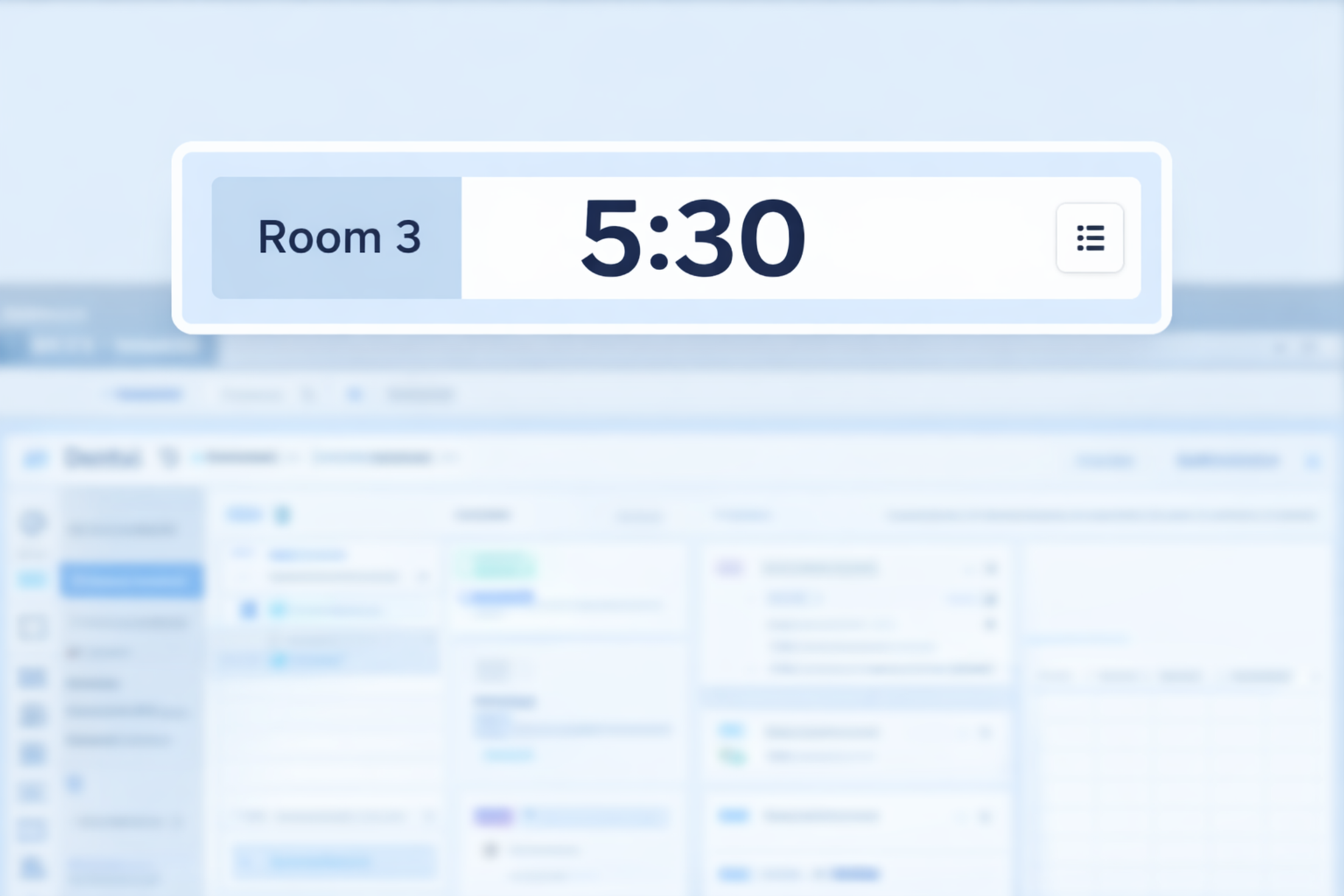
Virtual Intercom has officially released VCom version 2, now available on virtualintercom.com and through the Microsoft Store. This latest update delivers meaningful performance, usability, and visual improvements over previous versions, helping dental and healthcare teams communicate more efficiently using a digital message banner system designed for real-world office workflows.
What's New in VCom v2
Enhanced Timer Function for Dental Teams
One of the most requested features—our timer function—has been significantly improved in VCom v2 You can now configure the timer so it is visible only in the room where it was started, instead of appearing across all workstations. This keeps your message banner clean and uncluttered, allowing staff to focus on the messages that matter most.
Additional improvements include:
- Larger, more prominent timer numbers
- Reduced on-screen text
- Better visibility from across the operatory
These changes make Virtual Intercom an even more effective internal communication tool for dental offices.
Important Upgrade Information
When upgrading to VCom v2, please note:
- Dashboard-level settings (recipients, sounds, message routing) are preserved
- Workstation-specific settings (shortcuts, banner colors, layout preferences) must be reconfigured
To prevent issues, we strongly recommend uninstalling the previous "Virtual Intercom" app before installing the new "Virtual Intercom Desktop" application.
How to Upgrade to Virtual Intercom v2
Follow these steps to ensure a smooth upgrade from any 1.x.x version:
Step 1: Retrieve Your Activation Code
Log in to your Virtual Intercom dashboard at virtualintercom.com to locate your activation code.
Tip: You can also:
- Assign a keyboard shortcut (e.g., F7)
- Enable the timer function
- Select your preferred notification sound
Step 2: Uninstall the Previous Version
- Open the Windows Start menu
- Search for "Virtual Intercom"
- Right-click and select Uninstall
Step 3: Download VCom v2
You can install the latest version in two ways:
- Visit our product page
- Download directly from the Microsoft Store
Step 4: Install and Configure
- Click Get to download the app
- Open once installation is complete (installation time may vary)
- Name the workstation (e.g., Room 1, Front Desk)
- Enter your activation code
Step 5: Customize Your Digital Message Banner
Under Banner Appearance, adjust:
- Background color
- Text color
- Timer style
Under Banner Behavior, configure:
- Scrolling style and speed
- Banner hover sensitivity
Step 6: Set Message Routing and Shortcuts
- Choose which workstations send messages to this screen
- Add custom message shortcuts for fast, one-touch communication
Built for Peaceful, Efficient Dental Practices
VCom replaces overhead paging, radios, and hallway interruptions with quiet, instant, and targeted communication. VCom v2 continues that mission by giving dental teams greater control, clarity, and customization.
Ready to Upgrade?
If your dental office relies on fast, interruption-free communication, Virtual Intercom VCom v2 delivers practical improvements you'll notice immediately. Upgrade today and experience the Peaceful Practice Flow™ that comes from smarter internal messaging.